
Regrid most commonly delivers data as a pull process using SFTP (SecureFTP). FileZilla is a common cross-platform file transfer client that supports SFTP, but any transfer software that supports SFTP will work and is generally configured with the same settings as described below.
Step-by-Step
- Download and install FileZilla if you haven't already. You can download it from the official website.
- Open FileZilla and go to
File->Site Manager.
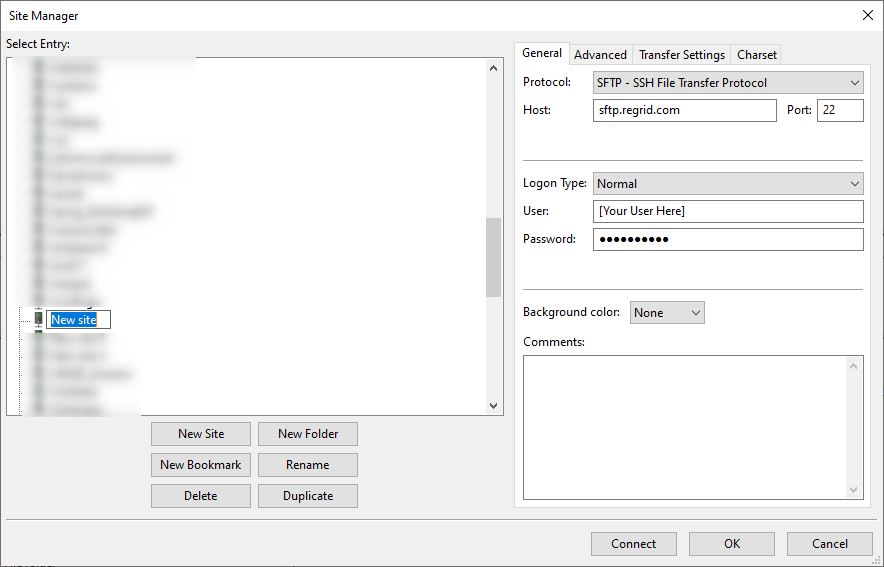
- Click on the
New Sitebutton and enter a name for the site (e.g. "regrid.com"). - In the
Protocoldropdown menu on the right, selectSFTP - SSH File Transfer Protocol. - In the
Hostfield, entersftp.regrid.com. - In the
Portfield, enter22(which is the default port for SFTP). - In the
Logon Typedropdown menu, selectNormal. - Enter your username and password for the SFTP server Regrid provided in the
UserandPasswordfields. - Click
Connectto connect to the SFTP server. - If everything is set up correctly, you should be able to see the files on the remote server in the right-hand pane of FileZilla. You can navigate through the directories and drag-and-drop files to transfer them between your local machine and the remote server.
Comments
0 comments
Please sign in to leave a comment.